Automation
How to Build a Smart AI Bot in n8n Without the Stress
Let a 'Senior Engineer' ChatGPT prompt design your entire n8n automation for you.
Intermediate4 steps
About This Recipe
Have you ever opened n8n and felt a little lost looking at all those empty boxes and lines? It’s totally okay! Most people feel that way at first. n8n is incredibly powerful, but it has a bit of a learning curve because it gives you so much control.
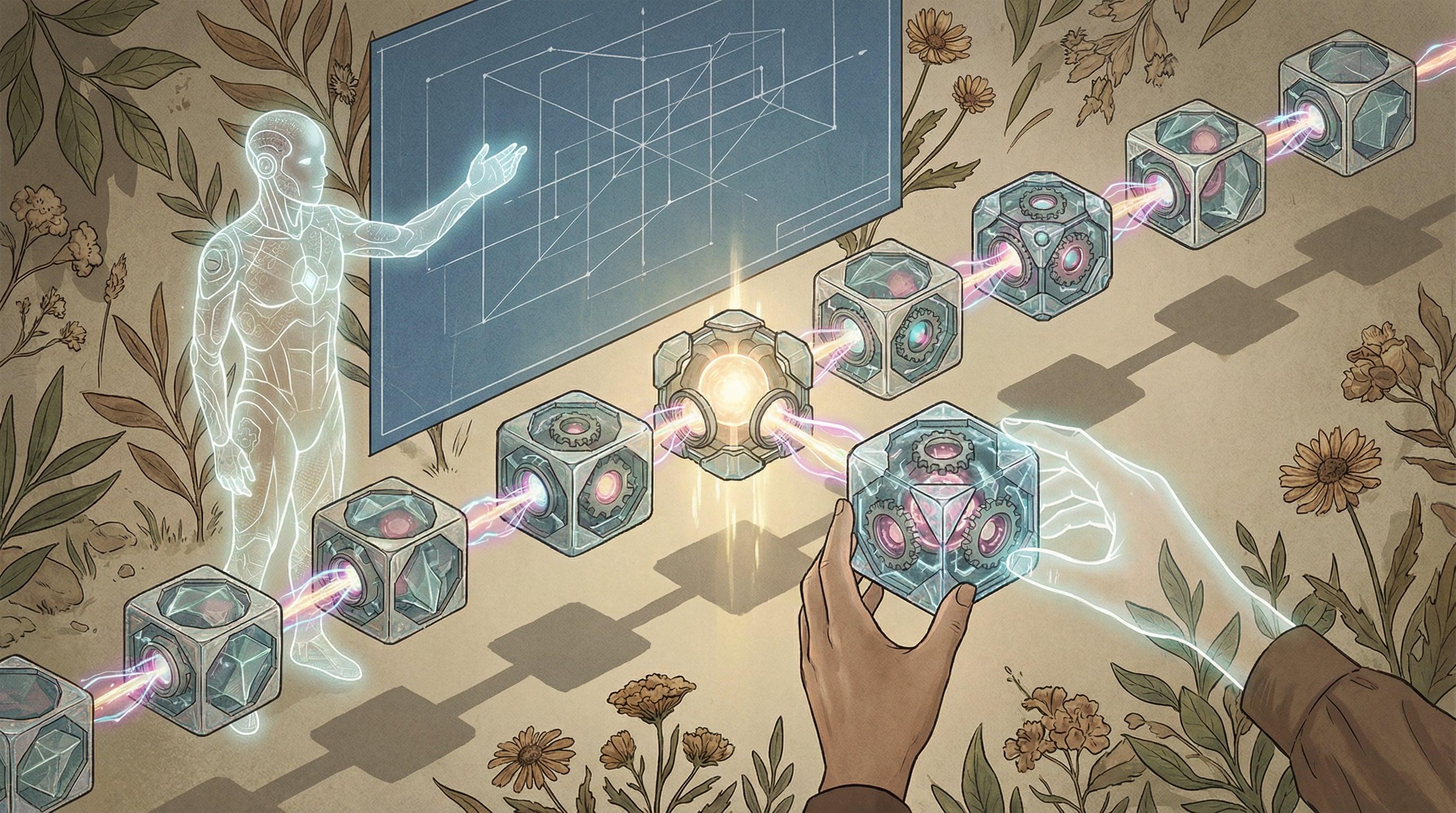
The good news is, you don’t have to figure it out alone. We’re going to use an 'AI Architect'—a special prompt you can give to ChatGPT or Claude—that acts like a senior developer sitting right next to you. It will tell you exactly which nodes to pick, how to link them together, and even write the tricky logic for you.
By the time we’re done, you’ll have a fully working AI agent that can handle tasks on its own. You won’t just be copying and pasting; you’ll see how everything fits together so you can start building your own cool ideas with confidence.
Before You Start
- An n8n account (Cloud, Desktop, or Self-hosted)
- A ChatGPT or Claude account
- API keys for any apps you want to connect (like Slack or OpenAI)
Steps
4 steps to complete this recipe
1
Decide what your bot will do
Before we talk to the AI, we need a clear goal. Think of this like giving someone directions. Instead of saying 'make a bot,' try something specific like: 'A bot that looks at new emails, decides if they are urgent, and sends a summary to my Slack.' Write this down as one simple sentence. We'll call this your 'mission.'
Keep it simple for your first time! Try a bot that has one 'start' and one 'end' point so you can see how the data flows.
2
Ask the AI Architect for a plan
Open up ChatGPT or Claude (Claude 4.5 Sonnet is really good at this). Paste in the 'Mega Prompt' below. This tells the AI to act like a pro developer who knows exactly how n8n works. Before you hit enter, make sure to replace the placeholder at the end with the mission you wrote down in the last step.
<role> You are an experienced automation architect with adva...If the AI mentions a node you can't find, just ask it: 'What should I search for in n8n to find that node?'
3
Map out your nodes
Look at the list the AI gave you. It might suggest things like 'HTTP Request' or 'OpenAI.' Now, open a new workflow in n8n. Click the '+' button, search for those nodes, and drop them onto your canvas. Arrange them in the order the AI suggested, but don't worry about the settings yet—we're just getting the 'skeleton' of your bot ready.
You can use the 'Sticky Note' tool in n8n to label your nodes. It helps you remember what each part is doing!
4
Set up the 'brains' of each node
Now we'll give each box its instructions. Click into a node and follow the AI's guide. If the AI gave you a snippet of code, copy and paste it right into the 'Code' node. For things like connecting to your email or Slack, the AI will tell you which 'Authentication' to pick. Once you finish a node, click the 'Test Step' button. If it turns green, you're doing great!
When you need to use info from a previous step, just drag the data from the left side of the screen into the setting box on the right. It’s like magic!
Key Prompts
Ready-to-use prompts for this recipe
1
The n8n Architect Mega-Prompt
ChatGPT<role> You are an experienced automation architect with advanced knowledge of bu...Variations & Alternatives
The Social Media Manager
Change your mission to 'Find trending news in my industry and write three LinkedIn posts about them.'
The Smart Support Assistant
Set your mission to 'Read new support tickets and draft a response based on our company's help documents.'


Related Recipes
Continue learning with these similar guides



Share Your Creation
Have a Recipe to Share?
Help the community learn by sharing your own AI creation workflows. Your recipe could inspire thousands of creators.
Submit Your Recipe