Image
How to Create YouTube Thumbnails with AI That Actually Get Clicks
Make professional, scroll-stopping thumbnails with Midjourney in just 5 minutes.
Beginner4 steps
About This Recipe
Think of your thumbnail as the front door to your video. If it looks inviting and exciting, people will walk in. If it’s boring or confusing, they’ll just keep walking. Most creators spend hours trying to design these, but we’re going to do it much faster.
In this guide, I'm going to show you how to work with Midjourney. It’s basically like having a world-class designer sitting right next to you. You tell it what you want, and it gives you four different options to choose from. It's a total game-changer for growing your channel.
Don't worry if you've never used AI before. We'll go step-by-step, and by the end, you'll have a thumbnail that looks like it was made by a pro studio.
Before You Start
- A Midjourney subscription (Basic plan is fine)
- A free Canva account for adding text
Steps
4 steps to complete this recipe
1
Decide on your 'big idea'
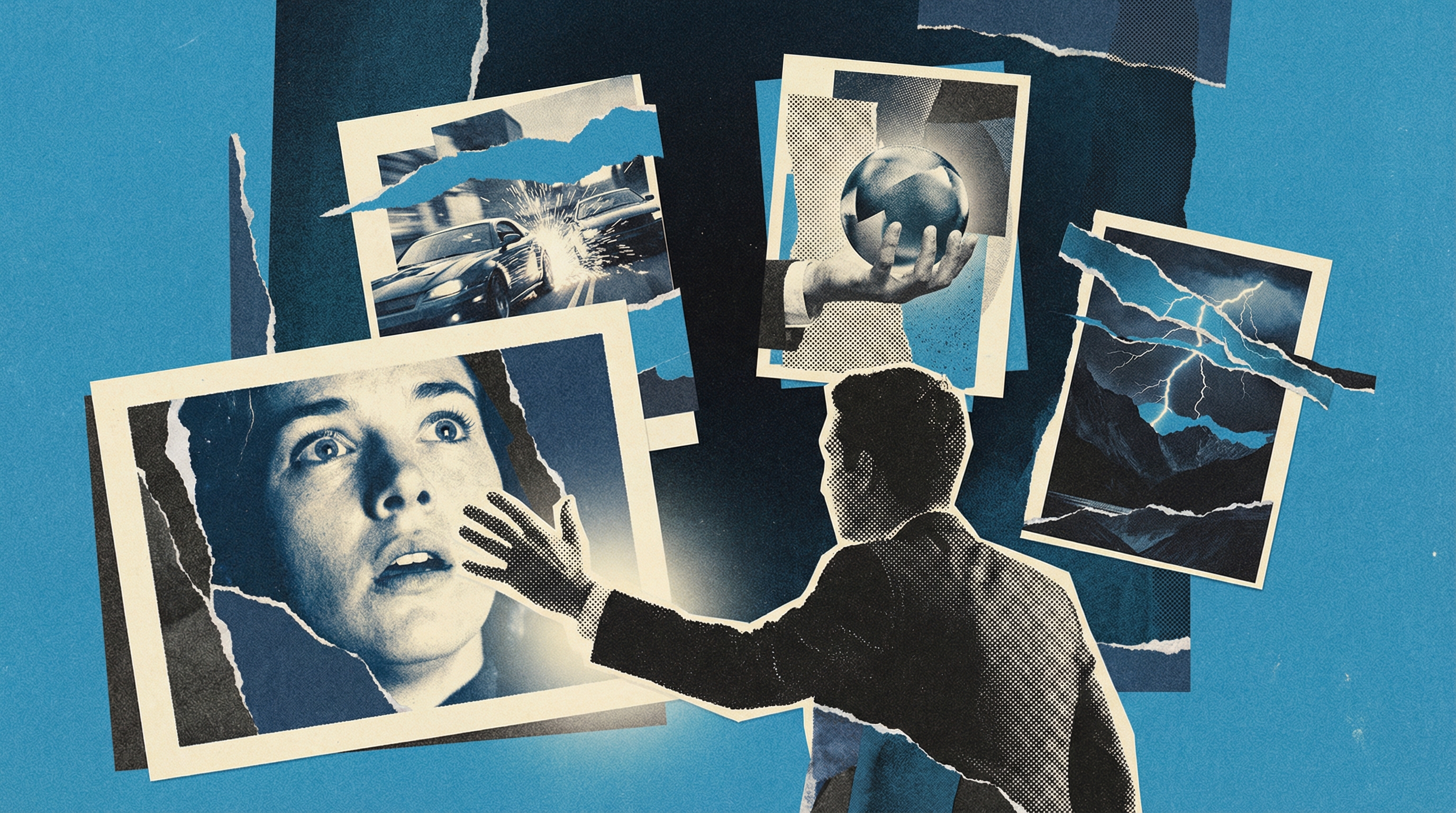
Before we open any tools, let's think about your video. What's the one thing you want people to feel? Is it surprise? Excitement? Curiosity? Pick one main person or object to be the 'star' of your image. For example, if you're making a travel video about Tokyo, your star might be a glowing neon street at night. Write down 2-3 ideas for what that 'star' looks like.
Simple is better! If there’s too much going on, people’s eyes will skip right over it when they’re scrolling on their phones.
2
Write your image description
Now, let’s tell Midjourney what to create. We'll use a simple formula: the subject, the emotion, the lighting, and the shape. Open Midjourney (either in Discord or their website) and type '/imagine'. Then, paste in the prompt below, but swap out the bracketed parts with your own ideas. We're adding '--ar 16:9' at the end to make sure the image is the perfect wide shape for YouTube.
professional headshot of [emotion] [person description], dra...Adding 'cinematic lighting' or 'vibrant colors' helps make the image pop against YouTube's white background.
3
Pick your favorite version
After you hit enter, wait about 60 seconds. You'll see four different images pop up. This is the fun part! Look for the one that is the most clear and easy to understand. If you're using Discord, click the 'U' buttons (U1, U2, U3, or U4) to 'upscale' the one you like. This just means the AI will make a big, high-quality version of that specific image for you to download.
If you like one but it's not quite perfect, click the 'V' buttons to see four more versions that look similar to that one.
4
Add your text and finish up
Great! Now download your high-quality image. Since Midjourney isn't great at spelling yet, we’ll use Canva Magic Studio to add our text. Upload your image there and pick a thick, bold font. Type out 3 or 4 words maximum—something that creates a 'curiosity gap.' For example, instead of 'My Trip to Japan,' try 'I Can't Believe This.' This makes people want to click to find out more.
Try the 'Squint Test.' Lean back and squint your eyes at the screen. If you can still read the text and see the main image, you've got a winner!
Key Prompts
Ready-to-use prompts for this recipe
1
Shocked Reaction Prompt
Midjourneyprofessional portrait of [person] with [shocked/excited/amazed] expression, look...2
Comparison Split-Screen
Midjourneysplit screen comparison, left side [before state] right side [after state], dram...3
Glowing Object Hero Shot
Midjourneydramatic product shot of [object], glowing, floating, dynamic pose, dark backgro...Variations & Alternatives
The 'Before vs. After' Split
Use the prompt formula to create a 'split screen' image showing a problem on the left and a solution on the right. This is huge for tutorial and transformation videos.
The 'Extreme Close-Up'
Focus your prompt entirely on an object with 'macro photography' and 'glowing edges' to make a simple item look incredibly mysterious and important.

Related Recipes
Continue learning with these similar guides
Share Your Creation
Have a Recipe to Share?
Help the community learn by sharing your own AI creation workflows. Your recipe could inspire thousands of creators.
Submit Your Recipe